
A Google Business Profile is the free listing that controls how your business appears on Google Search and Maps, your hours, location, reviews, photos, and contact details. Setting one up takes about 10 minutes, but getting verified and fully optimised is where most Australian businesses get stuck. This guide covers the full setup process, every current verification method (including the video and live-call options that have largely replaced the postcard), how to optimise your profile once it’s live, and what to do if Google suspends it, a step nearly every other guide on this topic skips entirely.
Quick answer: Go to google.com/business, sign in with a Google Account, search for your business to avoid creating a duplicate, add your name/category/location/contact details, then verify using whichever method Google offers you (usually video recording, phone, email, live video call, or, less commonly now, postcard). Verification review takes up to 5 business days.
What Is a Google Business Profile?
A Google Business Profile (formerly Google My Business) is a free tool that lets you manage how your business appears on Google Search and Google Maps, at no cost. It shows your hours, address or service area, phone number, website, photos, and customer reviews directly in search results, including the “local pack” map listing that appears above regular organic results for local searches.
For Australian small businesses, it’s often the single highest-leverage local SEO asset available: it’s free, it ranks above most organic listings for “near me” searches, and a complete profile with photos gets measurably more engagement. Google itself notes that a Business Profile with photos gets significantly more direction requests on Maps and more website clicks than one without.
Is Your Business Eligible for a Google Business Profile?
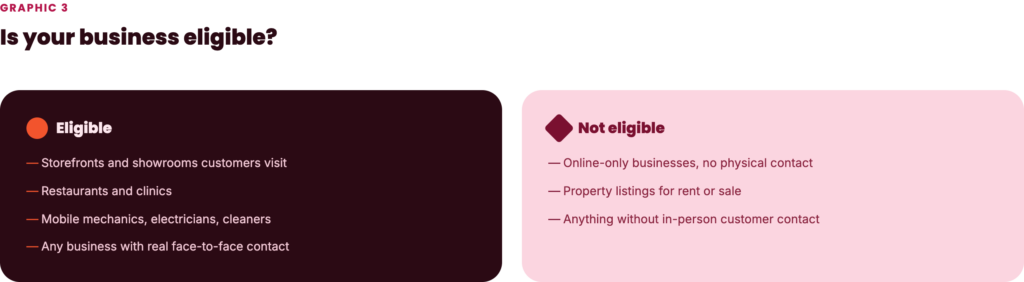
Not every business qualifies. According to Google’s own eligibility guidelines, you need to make face-to-face contact with customers — either at a storefront they visit or by travelling to them — during your stated hours.
- Eligible: storefronts, showrooms, restaurants, clinics, and service-area businesses like mobile mechanics, electricians, or cleaners who visit customers.
- Not eligible: online-only businesses with no physical location and no in-person customer contact, and property listings for rent or sale (these belong on real estate platforms, not Google Business Profile).
- Multiple locations: if you manage more than a handful of listings, use Business Profile Manager to handle them in bulk rather than setting each one up individually.
If your business is online-only, Google Ads is the intended alternative — a Business Profile won’t be approved.
How to Set Up a Google Business Profile
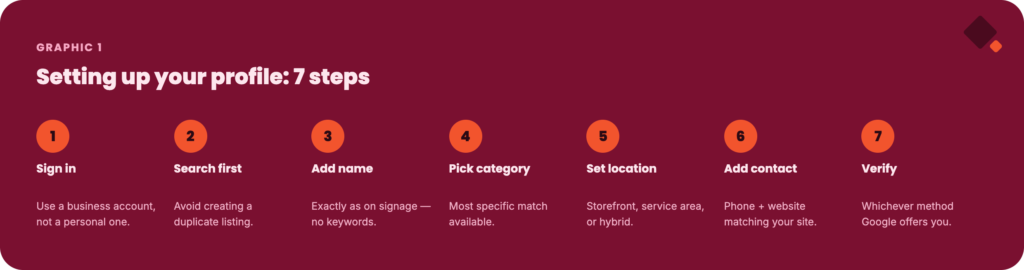
1. Sign in with a Google Account
You need a Google Account to create a profile. Use an account tied to the business itself — a shared company email, not a single employee’s personal Gmail — so you don’t lose access if that person leaves.
2. Search for your business first
Before creating a new listing, search for your business name and suburb on Google. Duplicate listings are one of the most common causes of both ranking problems and suspensions, because anyone can technically create a profile for a business that doesn’t have one yet. If a profile already exists, claim it instead of starting fresh.
3. Go to business.google.com and add your business name
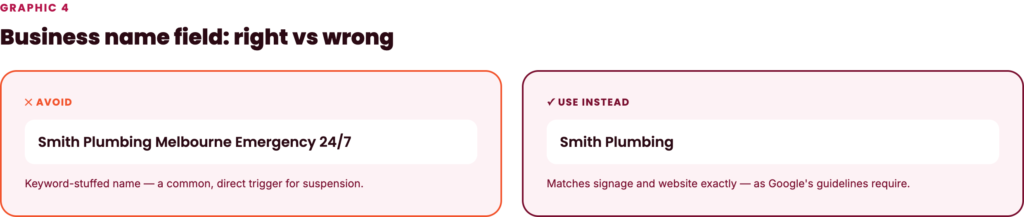
Head to google.com/business and select Manage now, then enter your business name exactly as it appears on your signage and website. Don’t add extra keywords to the name field (e.g., “Smith Plumbing Melbourne Emergency 24/7”) Google’s guidelines explicitly prohibit this, and it’s a common trigger for suspension.
4. Choose your category carefully
Select the most specific primary category available, “Italian Restaurant” rather than just “Restaurant,” or “Emergency Plumber” rather than “Plumber,” if that’s genuinely the closest match. Category choice directly affects which searches your profile can appear for, and changing it later can affect your existing rankings, so take the time to get it right the first time. You can add secondary categories afterward if they genuinely apply.
5. Set your location type
Choose whether customers visit you at a physical address (storefront) or you travel to them (service area), or both (hybrid). Service-area businesses can list up to 20 service areas by suburb or postcode without a public street address.
6. Add contact details
Add your phone number and website using the same details that appear on your website’s contact page — this NAP (name, address, phone) consistency matters for local SEO beyond just your Google listing. If you don’t have a website, Google can generate a basic one automatically from your profile info.
7. Verify your business
This is the step where most guides stop at “you’ll get a postcard” — which is increasingly not how it works. See the full breakdown below.
Google Business Profile Verification Methods Explained (2026)
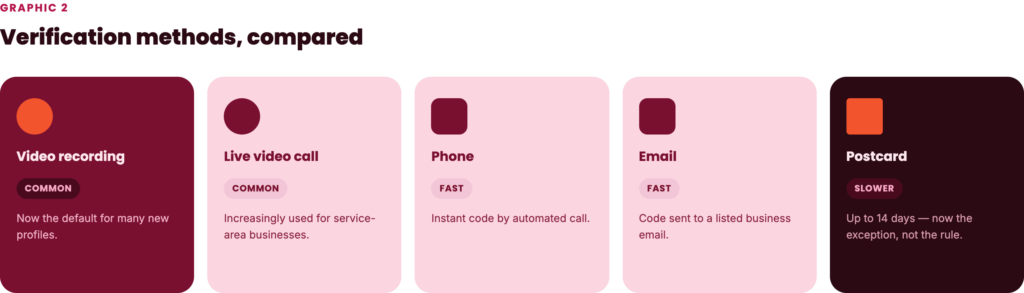
Google decides which verification methods are available to you automatically, based on your business type, category, and location — you can’t choose your preferred method, only try what’s offered. Here’s what’s currently available:
| Method | How it works | Typical timing |
|---|---|---|
| Video recording | Record a short video showing your business location, signage, and proof you operate there, then submit it for review. Google now recommends this method where it’s available. | Review within 5 business days |
| Phone or SMS | Google calls or texts a code to your listed business number. | Minutes |
| Google emails a verification link to the address on file. | Minutes | |
| Live video call | A support representative joins a live video call during your business hours; you show your location, signage, and proof of operation in real time. | Same session |
| Postcard (mail) | Google mails a physical postcard with a 5-digit code to your business address. | Most codes arrive within 14 days; codes expire after 30 days |
| Instant verification | Automatic if your website is already verified in Google Search Console, or via bulk verification for multi-location businesses. | Immediate |
A few things worth knowing that most guides leave out:
- Postcard is no longer the default for most businesses. Google has been shifting new listings toward video recording and live video call, particularly for service-area businesses and new profiles. If you’re only being offered a postcard, that’s now the exception rather than the rule for many categories.
- Don’t edit your listing while waiting for a postcard code. Changing your business name, address, or category invalidates the code in transit.
- Requesting a new postcard code cancels the old one — this often adds days to the process rather than saving time.
- If “Get verified” reappears after you’ve already verified, it means Google couldn’t fully confirm your business and you’ll need to re-verify, sometimes through a different method than the first time.
- Verification review generally takes up to 5 business days once you’ve submitted your info, regardless of method (source: Google Business Profile Help).
How to Optimise Your Google Business Profile After Verification
A verified but half-filled-out profile won’t compete. Work through every tab:
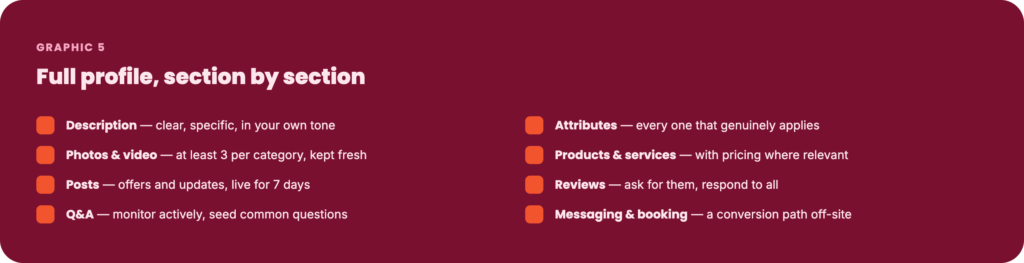
- Business description and services. Write a clear, specific description of what you do and who you serve — this is also where Google’s AI-generated description suggestion tool (available in Australia) can draft a starting point based on your website and existing profile info, which you should always review and edit to match your actual tone of voice before publishing.
- Attributes. Add every attribute that genuinely applies (wheelchair accessible, outdoor seating, women-owned, LGBTQ+-owned, and so on) — Google has confirmed these affect which searches your listing surfaces in.
- Photos and videos. Upload real photos regularly: exterior, interior, team, and product/service shots. Google recommends at least three photos per category. Stale or missing photos are one of the fastest ways to look inactive.
- Products and services. List what you sell or offer with descriptions and pricing where relevant — this shows directly in the listing before someone even clicks through to your site.
- Google Posts. Publish updates, offers, and events. Posts stay visible for 7 days and up to 10 can rotate in a carousel, so treat this like a lightweight content calendar rather than a one-off task.
- Reviews. Ask verified customers for reviews and respond to all of them — positive and negative. Response rate and recency are both signals Google and customers pick up on.
- Q&A. Monitor this section actively; anyone can post a question, and unanswered questions sitting publicly on your profile look worse than no Q&A activity at all. Seed it with the questions you actually get asked.
- Messaging and booking links. Turn on direct messaging and add a booking URL if you take appointments — these create a conversion path that doesn’t require a click through to your website at all.
Managing Multiple Locations
If you’re setting up more than a handful of profiles — a franchise, a multi-location retailer, or an agency managing client listings — use Business Profile Manager rather than repeating the individual setup flow. It supports bulk verification and centralised management across every location from one dashboard, which also reduces the risk of inconsistent NAP data between listings.
What to Do If Your Google Business Profile Is Suspended
This is the section almost no setup guide covers, and it’s become a genuinely common problem in 2026 as Google’s spam detection has tightened. Suspensions typically trace back to one of a few causes: a keyword-stuffed business name, an address or category that doesn’t match your other public records, or a burst of rapid edits that trips automated review.
If it happens to you:
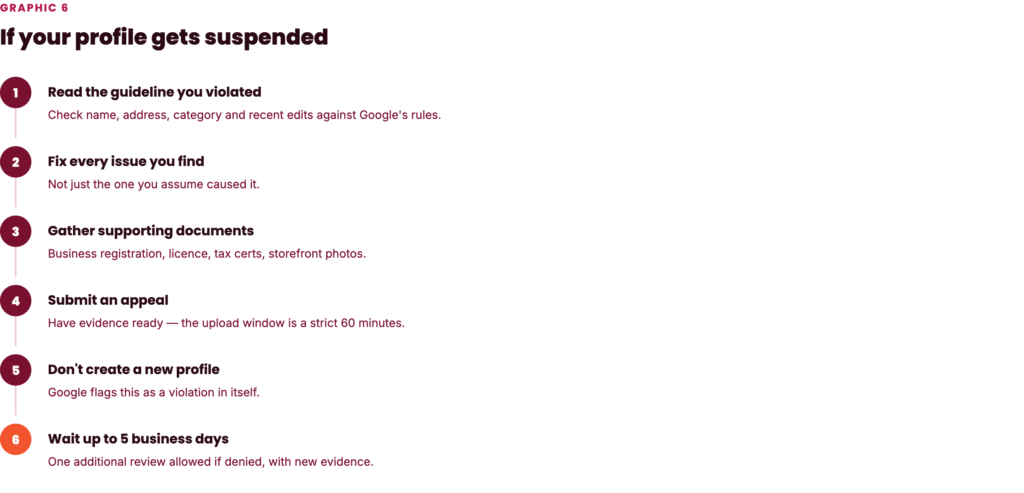
- Read the guideline you’ve been told you violated. Google’s Business Profile guidelines list what triggers action — check your name, address, category, and recent edit history against them before doing anything else.
- Fix every issue you can find, not just the one you assume caused it. Reinstatement goes more smoothly when your profile matches real-world proof exactly: correct legal business name, valid address, accurate phone and website.
- Gather supporting documents before you file: business registration, a business licence, tax certificates, or utility bills in the business’s name, plus photos of your storefront, signage, or vehicle for mobile businesses.
- Submit an appeal through the Business Profile appeals tool. If you’re prompted to add evidence, note that the upload form has a strict 60-minute window once opened — have your documents ready beforehand.
- Don’t create a new profile while the appeal is under review. Google explicitly flags this as a violation in itself and can complicate the original appeal.
- Expect up to 5 business days for a decision. If denied, you can request one additional review with new supporting evidence — but avoid submitting repeat appeals for the same issue before you’ve heard back on the first.
Google Business Profile Setup Checklist
| Task | Done? |
|---|---|
| Searched Google to confirm no existing/duplicate listing | |
| Business name matches signage exactly (no keyword stuffing) | |
| Most specific accurate primary category selected | |
| Location type set correctly (storefront / service area / hybrid) | |
| Phone, website, and address match your website’s contact page | |
| Verification method attempted and code/video submitted | |
| Business description and services filled out | |
| At least 3 photos uploaded per category (exterior, interior, team) | |
| Attributes added | |
| First Google Post published | |
| Review request process set up for new customers |
FAQ
Is Google Business Profile free? Yes. Creating, verifying, and managing a Business Profile costs nothing. Google makes money separately through Google Ads, which is optional and separate from your free listing.
How do I access my Google Business Profile? Sign in to the Google Account linked to your profile, then search your business name and suburb on Google, or open the Google Maps app and tap Business in the bottom navigation.
How do I create a Google Business Profile for my company? Go to google.com/business, select Manage now, sign in, and follow the setup flow: business name, category, location, contact details, then verification. See the full step-by-step above.
How do I delete a Google Business Profile? From your profile dashboard, go to Business Profile settings and select the option to remove the listing. If you no longer have access, you can request ownership transfer first, or contact Google Business Profile support directly.
Can an online-only business get a Google Business Profile? No. Google Business Profile requires in-person customer contact, either at a physical location or by visiting customers. Online-only businesses should use Google Ads instead.
What if I never receive my postcard verification code? Wait the full 14 days first — requesting a new one cancels the original and can add further delay. If it’s genuinely lost after that, log back into your profile to request a new code, or try an alternative method (phone, email, video, or live call) if Google offers one.
How long does Google Business Profile reinstatement take after a suspension?
Google’s own guidance points to up to 5 business days for an appeal decision once submitted with full supporting evidence. Reinstatement can take longer in practice if the first appeal is denied and a second review with new evidence is needed — which is why gathering strong documentation (business registration, licences, utility bills, storefront/signage photos) before you file the first appeal matters more than filing quickly.
Bottom Line
The mechanical setup, name, category, location, contact details, takes most Australian businesses under 15 minutes. The parts that actually determine whether the listing performs are choosing the right verification method for your situation (video and live video call are now common, not just postcard), filling out every optimisation section rather than leaving it half-done, and knowing what to do if Google flags your profile, since suspensions are increasingly common and most business owners have never seen the appeals process until they need it.